Introducing Comfort Keys Pro
Comfort Keys Pro is a new generation shortcut (hotkey) manager that will help you automate frequently repeated actions.
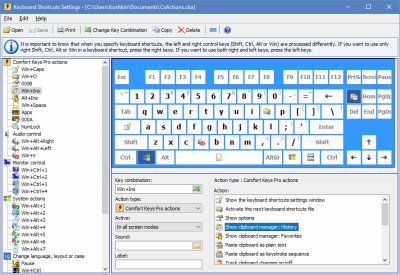
Comfort Keys Pro features
With Comfort Keys Pro, you can block keystrokes, replace one keystroke with another, or assign a shortcut key for any of the following actions:
| • | Run a program; open a document or a folder. |
| • | Open one or several Internet resources. |
| • | Paste some predefined text (phone, link, address, greeting, signature, password, etc.). |
| • | Open the built-in Template Manager allowing you to quickly paste snippets and images. |
| • | Play a previously recorded keystroke macro. |
| • | Open the built-in clipboard manager. |
| • | Open the built-in on-screen keyboard. |
| • | Change the language for the recently typed characters. |
| • | Change the language for the selected characters. |
| • | Change the case of the selected characters. |
| • | Turn down and up, enable and disable sound. |
| • | Minimize, maximize, restore or close the current window. |
| • | Hide the current window, display the last hidden window. |
Shortcut keys configured in the program work in all applications. While specifying shortcut keys, you can use any keys including NumLock and CapsLock.
When you install Comfort Keys Pro, you get the set of features present in several of our products free of charge:
| • | Comfort On-Screen Keyboard Pro. |
It is easy to use Comfort Keys Pro in workgroups. To do it, just save the shortcut file to a network resource and configure it to be used on every workstation.
When you configure shortcut keys, the left and right control keys (Shift, Ctrl, Alt or Win) are processed differently, which makes it possible to increase the number of shortcut keys and make it easier to use them. Also, you can configure shortcuts to be processed differently in the full-screen mode (for instance, you can block pressing the Win key in computer games).
The built-in on-screen keyboard will allow you to select a comfortable keyboard combination and afterwards this very on-screen keyboard will show you what shortcut keys are available for you.
The software is completely compatible with Microsoft Windows 11 / 10 / 8.1 / 8 / 7 / Vista / XP.



