
Contents

Introducing Comfort Keys
Version Comparison
Why do you particularly need Comfort Keys?
How to buy Comfort Keys
How to use Comfort Keys
Keyboard Shortcuts Settings
Working with Template Manager
Working with Clipboard Manager
Using the on-screen keyboard
Controlling the input language
Customizing the keyboard type
Editing templates
Template macros
Editing shortcut icons
Action types
Run a program; open a document or a folder
Open one or several Internet resources
Paste text
Play a keystroke macro
Connect/Disconnect from a network
Comfort Keys actions
Show Clipboard Manager
Paste text from Templates
Open the task switching window showing open documents and running applications
Show the keyboard shortcuts settings window
Show/Hide On-Screen Keyboard
Show the list of recently launched programs
Show the desktop with hot keys
Activate the next keyboard shortcuts file
Audio control
Monitor control
Window control
Perform a system action
Change the language or case
Lock/Restart/Shutdown
Block key or shortcut
Replace key or shortcut
Options
Main Properties
Themes
Keyboard Shortcuts
On-Screen Keyboard
Clipboard Manager
Template Manager
Word Autocomplete
Language Switcher
Shortcut icons
Task Switching Window
Process History Window
Exceptions
Advanced
Other issues
FAQ - Frequently asked questions
License Agreement
Contact information
Development
Show, close, fade or move the On-Screen Keyboard
How to restrict access
How to activate different keyboards

 
Home
Comfort Keys Web Online Help
Prev Page Next Page
 
 
Editing templates
return to introduction  previous page  next page
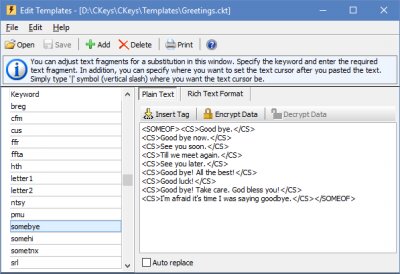
A set of templates is presented in the form of a simple list. Each template can be of one of the following two types: plain text or RTF. Each type is used for its own purpose.
templateen

Plain text
It is used for text without formatting. You can add various macros to templates of this type. See how to use macros in the Template macros section.
You can specify the position of the text cursor after the text is pasted. Just type the '|' character (vertical slash) there.

You can protect your data with a strong 448-bit Blowfish encryption. Nobody will access your stored data without your secret password.

RTF (Rich Text Format)
It is used for formatted text. If the application you are trying to paste the text in does not support formatting, plain text is pasted. If you lack some features for formatting your text, you can use more powerful tools, such as MS Word, and paste the final text to the template via the clipboard after you format it.
Here you can also specify the position of the text cursor after the text is pasted in the same way it is done for the plain text format.
If you want to use small images in text editors (mail clients, etc.), it is more convenient to use RTF because the images will be stored in the template database in this case.

Tips and tricks

· It is possible to configure several sets of templates. Select the Open item on the File menu to open another template file.  
· If you create a noteworthy template set and send it to us, we will be glad to include it in the next release of the program. In this case, you will be specified as the author of this file. Send your files to dev@comfort-software.com or post them on our forum.  


Visit Comfort Keys web-site
Converted from CHM to HTML with chm2web Pro 2.75 (unicode)