


Using the on-screen keyboard
The on-screen keyboard lets you enter text using a touchscreen, a mouse, or any other pointing device.
Unlike a physical keyboard, the on-screen keyboard changes labels on its keys depending on the current input layout (language), which allows you to type without having a localized keyboard.
The on-screen keyboard also provides additional options to help you enter text more quickly: Text Suggestions, Gestures, Typing Aid, Show alternate characters or symbols, and more.
The icons of shortcut keys used in Windows and in the current application are displayed on the keys of the on-screen keyboard. If you hover the mouse over a key with an icon, you can see a hint describing the shortcut’s purpose. This way, you can quickly learn keyboard shortcuts, which will help you work much faster and easier.
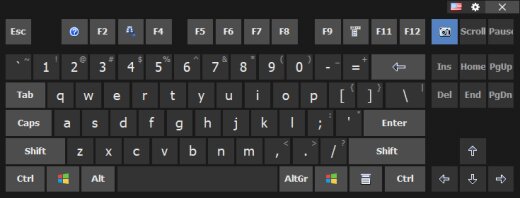
You can forcibly show or hide the on-screen keyboard by pressing the corresponding keyboard shortcut (by default, Apps), or by selecting the On-Screen Keyboard item in the application’s context menu.
For more details on configuring the appearance and behavior of the on-screen keyboard, see the On-Screen Keyboard section.
Tips and tricks
| • | You can use the Floating Window or the Floating Icon to quickly show or hide the on-screen keyboard. |
| • | If you right-click a key on the on-screen keyboard, the upper case will be used for entering the character. |
| • | If you click a key on the on-screen keyboard with the middle mouse button, the application will emulate a key press in combination with Ctrl key. |
| • | You can manually create files with shortcut icons for applications used in your everyday work. If you create such file for an application frequently used in your company and copy it to several workstations, you will considerably increase the efficiency of the employees. For more details, see the Editing shortcut icons section. |
| • | When the on-screen keyboard is used with a touchscreen, the arrow keys work as a D-pad. |
See Also
How to install another language and keyboard layout