Working with clipboard manager
Clipboard manager automatically monitors the clipboard for any changes and saves them in the clipboard history.
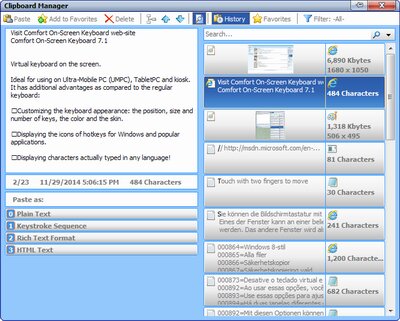
All data are automatically saved to the hard drive. You can specify the number of fragments to be saved to keep the impact on your computer’s performance to a minimum. By default, 500 fragments are saved.
Clipboard manager supports all known data formats.
By default, the Win+Ins keyboard shortcut opens the clipboard manager window.
The following information is displayed for each saved fragment:
| • | Brief fragment contents: a text or an image. |
| • | The icon of the fragment’s format as defined in your system. |
| • | The icon of the application from which the fragment was copied to the clipboard. |
| • | Additional brief information for each fragment according to its format. |
| • | The list of all formats the fragment can be used in. |
You can select several fragments in the clipboard manager by pressing and holding Ctrl or Shift key. To paste the selected fragments into the current application, press Enter or Ins key.
All data are copied to the clipboard in several formats at once, so you can select the format that you want to use. To paste the currently selected fragment in a certain format, select that format in the Paste as list or press the shortcut letter key (0 ... 9). For instance, you can paste RTF text in the Plain Text format.
See the Clipboard Manager section for the clipboard manager settings.
Keyboard shortcuts
| • | Ctrl+F – Activate the Instant Search box. In the Instant Search box, type your search text. When you start typing, the search begins automatically. When you are finished with the search, you can clear the search by pressing Esc key. Your 20 most recent searches are saved and can be reused. Click Search button in the Instant Search box, or press Down key, and then click the search word or phrase that you want to use again.Ins or Enter – Paste the selected fragments |
| • | Ctrl+D – Add the selected fragments to Favorites |
| • | Del – Delete the selected fragments |
| • | Ctrl+Up Arrow – Move the selected fragments up |
| • | Ctrl+Down Arrow – Move the selected fragments down |
| • | Ctrl+C – Copy the selected fragments to the clipboard |
| • | Ctrl+A – Select all fragments in the current list |
| • | 0 ... 9 – Paste the selected fragments using the specified format |
Tips and tricks
| • | You can select several fragments in the clipboard manager by pressing and holding Ctrl or Shift key. |
| • | You can merge selected text fragments into one. |
| • | The Data Directory for the clipboard manager can be shared among multiple users. When data is changed by one user, the data is updated for other users. You can also use a shared network folder, or a service like Google Drive or Microsoft OneDrive. |
| • | You can drag and drop selected fragments from the clipboard manager into another application. |
| • | You can drag and drop selected fragments into groups of favorite fragments. |
| • | You can protect your data with strong 448-bit Blowfish encryption, so that nobody can access them without knowing your password. |
| • | You can specify a color (category) for any saved fragment in clipboard manager. |



